

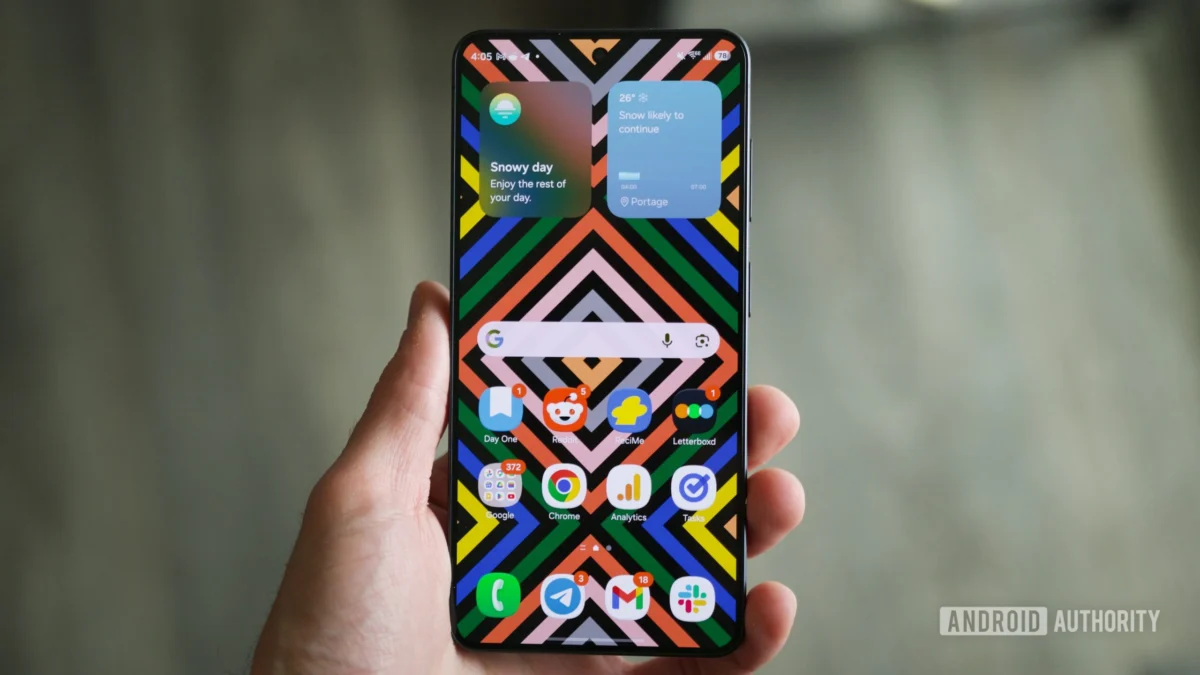
The arrival of a new flagship smartphone, particularly one from the Samsung Galaxy ecosystem, heralds a familiar ritual for tech enthusiasts. Beyond the necessary data migration and application installation, lies the critical phase of system configuration. Samsung’s One UI, while robust and feature-rich, is often characterized by an array of pre-enabled functionalities that, while intended for broad appeal, can frequently impede the efficiency and preferred aesthetic of power users. This comprehensive initial tuning is not merely about personalization; it is about reclaiming system resources, minimizing unwanted interruptions, and aligning the device’s behavior with established Android usability paradigms. For those unboxing the latest iterations, such as the anticipated Galaxy S26 series or established models running recent One UI versions, a targeted approach to disabling certain default settings is paramount to achieving an optimized, clutter-free mobile computing environment.
The Context of Samsung Customization: Feature Bloat vs. User Control
Samsung’s market dominance is inextricably linked to its aggressive software strategy, deploying One UI atop the Android base layer. This approach allows the company to differentiate its hardware significantly from stock Android implementations found on Google Pixel devices or other OEMs. Historically, this strategy has resulted in a perception of "feature bloat"—a dense layering of proprietary tools, background processes, and visual flourishes that can sometimes overwhelm the core operating system. While many features, like DeX or advanced camera controls, are celebrated, others represent legacy additions or commercial integrations that serve limited user segments but impact the experience of the majority. Understanding this context is crucial: these initial tweaks are a necessary countermeasure against a default setting optimized for the broadest possible market, rather than the most discerning or efficiency-focused user.
Six Critical Configuration Adjustments for Immediate Implementation
To transition a new Samsung device from its factory state to a high-performance, intuitive tool, we isolate six areas that consistently benefit from immediate modification. These changes address input methods, notification management, interface clutter, and accidental activation.
1. Replacing the Default Input Mechanism: Ejecting the Samsung Keyboard
The very first barrier to seamless text entry on a new Samsung device is often the native Samsung Keyboard. Despite continuous updates, it frequently exhibits inconsistencies in predictive text algorithms, sluggish voice-to-text conversion, and an overall typing feel that lags behind superior alternatives. For users accustomed to the more refined, context-aware linguistic models of competitors, the Samsung Keyboard can become a significant source of frustration and input errors.
Expert Analysis: The challenge for Samsung is maintaining feature parity (like deep integration with One UI elements) while competing with highly optimized third-party keyboards. For most users, the trade-off favors established external engines.
Action Protocol: The immediate priority should be the installation and designation of an alternative, such as Google’s Gboard, known for its superior cross-platform consistency and language processing. The process involves:
- Installing the preferred keyboard application from the Galaxy Store or Google Play Store.
- Navigating to Settings > General management > Keyboard list and default.
- Enabling the newly installed keyboard and selecting it as the default input method.
This simple substitution removes a major daily friction point and immediately improves typing accuracy and speed.
2. Unifying Notification and Quick Settings Access
Modern One UI versions have adopted a split-pull-down gesture system, dividing the notification shade and the Quick Settings panel across different screen quadrants (left for notifications, right for controls). While proponents argue this optimizes reachability on large displays, it fundamentally breaks the established, single-gesture expectation established by Android over the last decade. Requiring users to aim precisely for the upper-left or upper-right corner introduces unnecessary cognitive load and delays access to essential toggles.
Expert Analysis: This is a design choice often seen in manufacturers attempting to differentiate the notification experience, but it often conflicts with established motor memory. True efficiency demands consolidated access.
Action Protocol: Reverting to the unified view streamlines interaction:
- Access Settings > Notifications > Notification panel quick settings.
- Under the "Quick panel layout" option, select "Show notifications first" or "Compact notification" (depending on the specific One UI version) to consolidate the view upon the initial swipe, or ensure the option to pull down the full panel from any location is active.
This ensures a single downward swipe from the top edge reveals the complete Quick Settings grid overlaid atop recent notifications, mirroring the universal standard.
3. Eliminating Edge Panel Interference
Edge Panels are Samsung’s proprietary multitasking sidebar, accessible via a semi-transparent tab affixed to the screen edge. While this feature offers quick access to specific applications, clipboard history, or tools, its persistent visual presence and sensitivity often lead to accidental activation. For users who prefer clean screen real estate or engage in rigorous one-handed navigation, the panel frequently triggers unintentionally, interrupting workflow.
Expert Analysis: Edge Panels are a classic example of a niche feature becoming default clutter. In the age of advanced gestures and dedicated side keys, the screen edge trigger is overly sensitive and rarely utilized by advanced users.
Action Protocol: Complete removal is the most effective strategy for reclaiming interface integrity:
- Navigate to Settings > Display > Edge panels.
- Toggle the main Edge panels switch to the off position.
This instantly removes the handle from the screen edge, preventing accidental invocations during routine handling, swiping, or cleaning the display.
4. Suppressing Default Payment Shortcuts: Samsung Wallet Disablement
Samsung Wallet (formerly Samsung Pay) is deeply integrated, often manifesting as a persistent, upward-swipeable shortcut located just above the navigation bar or gesture pill on the home screen. For users who rely exclusively on competing mobile payment systems (like Google Wallet) or who simply do not use NFC payments, this persistent UI element serves no purpose other than occupying valuable screen real estate and potentially triggering during fast scrolling or gesture execution.
Expert Analysis: The integration of financial services into the default OS layer is a strategic move for ecosystem lock-in, but it necessitates granular control for users who prefer platform agnosticism in their financial tools.
Action Protocol: Deactivating the swipe-up triggers requires navigating deeper into the Wallet settings:
- Open the Samsung Wallet application.
- Access the settings menu (usually via the profile icon or three-dot menu).
- Locate and access "Quick access" or "Favorite cards" settings.
- Systematically disable the toggles corresponding to Home screen, Lock screen, and Screen off gestures.
This ensures that the bottom portion of the display remains free from unsolicited payment prompts, preserving smooth navigation.
5. Restoring Legible Lock Screen Notifications
A significant—and highly criticized—design shift introduced in recent One UI iterations involves the lock screen notification display. Instead of presenting traditional, easily readable notification banners, the system defaults to displaying small, abstract icons clustered near the status bar. This obfuscation of critical information forces the user to unlock the device or actively pull down the shade just to ascertain the nature of an incoming alert.
Expert Analysis: This alteration prioritizes a minimalist aesthetic over immediate informational utility. In a security-conscious environment, showing notification content briefly on the lock screen is standard practice; reducing it to iconography is a regression in notification design language.
Action Protocol: Reverting to informative banner displays is essential for effective multitasking:
- Navigate to Settings > Notifications > Lock screen notifications.
- Select the "Details" or "Show content" option, moving away from the default "Icon only" setting.
This adjustment ensures that glanceable information—the sender, subject line, or a snippet of the message—is immediately visible, restoring functional clarity to the lock screen interface.
6. Deactivating the Erroneous Screenshot Gesture
The palm-swipe gesture for capturing screenshots is a feature that embodies the tension between innovative input and practical application. While theoretically elegant, the required physical movement—a side-to-side sweep across the display—is perilously close to the motion used for wiping dust, fingerprints, or smudges from the screen surface. The result is an unacceptably high rate of unintended screenshots clogging the gallery.
Expert Analysis: This gesture fails the fundamental usability test: it triggers too frequently under normal usage conditions. Unlike deliberate button combinations, the swipe gesture relies on an imprecise, large-area movement.
Action Protocol: This feature should be disabled immediately to preserve storage integrity and reduce file management overhead:
- Go to Settings > Advanced features > Motions and gestures.
- Locate the "Palm swipe to capture" setting.
- Toggle this function off.
Users retain the reliable hardware button combination (Power + Volume Down) for deliberate captures, eliminating accidental captures caused by routine screen maintenance.
Industry Implications and Future Trajectories
These six immediate actions represent a broader trend in the Android landscape: the ongoing negotiation between OEM differentiation and universal usability standards. Samsung, as the largest Android manufacturer, wields considerable influence, and its software decisions ripple across the ecosystem. When a major OEM introduces a change like the split Quick Settings, it sets a precedent that other brands may emulate or, conversely, actively reject to differentiate themselves.
The continued existence of these toggleable, yet default-on, features highlights a critical industry challenge: The Default Setting Dilemma. Manufacturers must balance showcasing the maximum number of features out-of-the-box—a key marketing differentiator—against providing a clean, low-friction onboarding experience. For premium hardware, where users often pay for performance and refinement, the expectation is that the out-of-box experience should reflect that premium status, which necessitates fewer arbitrary obstacles.
Looking forward, the trajectory of mobile operating systems suggests an increasing reliance on advanced AI to manage context, which could eventually render manual feature toggling obsolete. If the OS can accurately predict when a user actually needs the Edge Panel or when a swipe is purely for cleaning versus capturing, these manual overrides might disappear. However, until that AI proficiency is achieved—a state where user intent recognition is near-perfect—the power user will remain dependent on these initial configuration sweeps. For the immediate future, mastering these six settings remains the definitive first step to unlocking the true potential of a new Samsung Galaxy device.
