

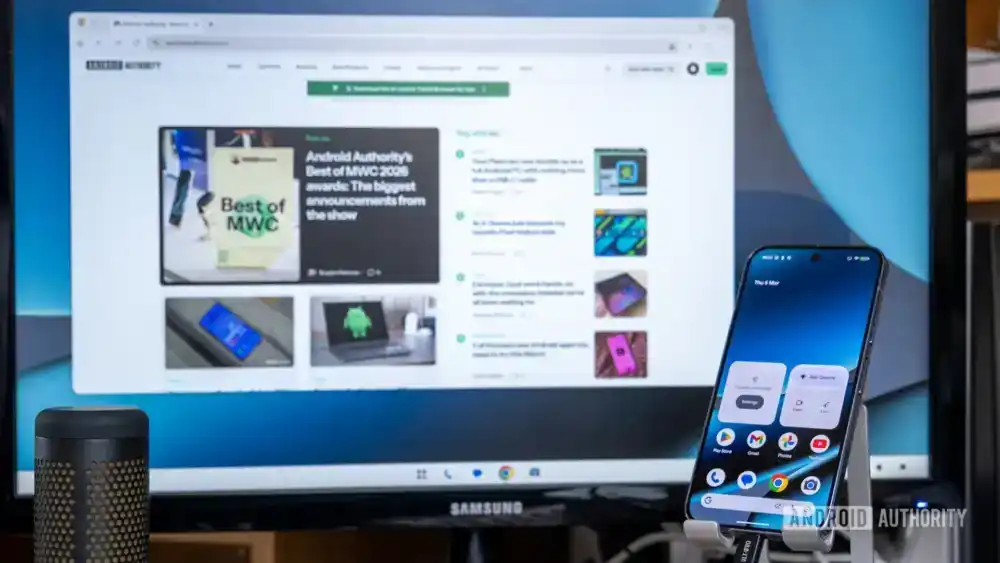
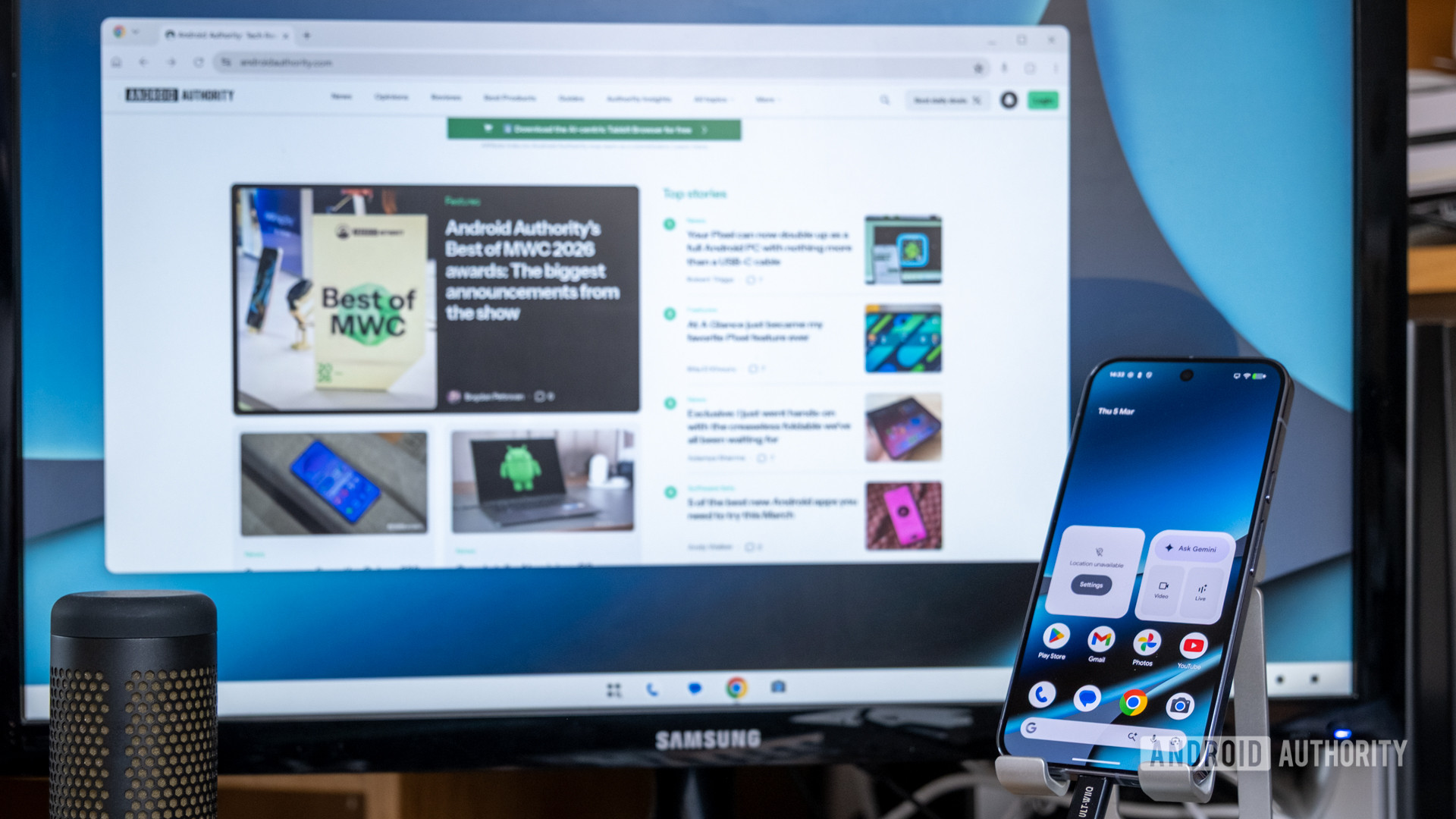
The recent integration of a dedicated desktop interface into the latest Pixel software update—often highlighted as a key feature of significant quarterly drops—represents a pivotal moment in mobile computing convergence. This isn’t merely a screen mirroring function; it is a deliberate, native attempt by Google to transform the smartphone into a viable, low-power desktop replacement. Activating this feature is deceptively simple: a single USB-C or DisplayPort connection to an external monitor initiates the shift, presenting a familiar, windowed environment complete with a taskbar (dock) and movable application containers. However, transitioning from the touch-centric mobile paradigm to a keyboard-and-mouse ecosystem requires an adjustment period, filled with nuances that separate casual users from true power users. To expedite this transition and fully harness the productivity potential unlocked by this converged architecture, mastering a set of core configurations and workflow adjustments is crucial.
The Historical Context of Mobile Convergence
The concept of turning a pocket computer into a desktop experience is not new. Samsung’s DeX platform pioneered this space years ago, demonstrating the technical viability of running a modified Android environment on external displays. However, those early iterations often felt like overlays rather than true operating system expansions. Google’s implementation, particularly as it matures with rumored underlying architectural shifts like "Aluminum OS," signals a deeper commitment to standardizing this functionality directly within the core Android framework. This move has significant industry implications, potentially challenging the reliance on ultra-lightweight laptops or entry-level PCs for many common productivity tasks. The Pixel hardware, being Google’s reference device, serves as the initial proving ground for this next evolution of mobile computing.
1. Establishing the Core Input Ecosystem via Bluetooth
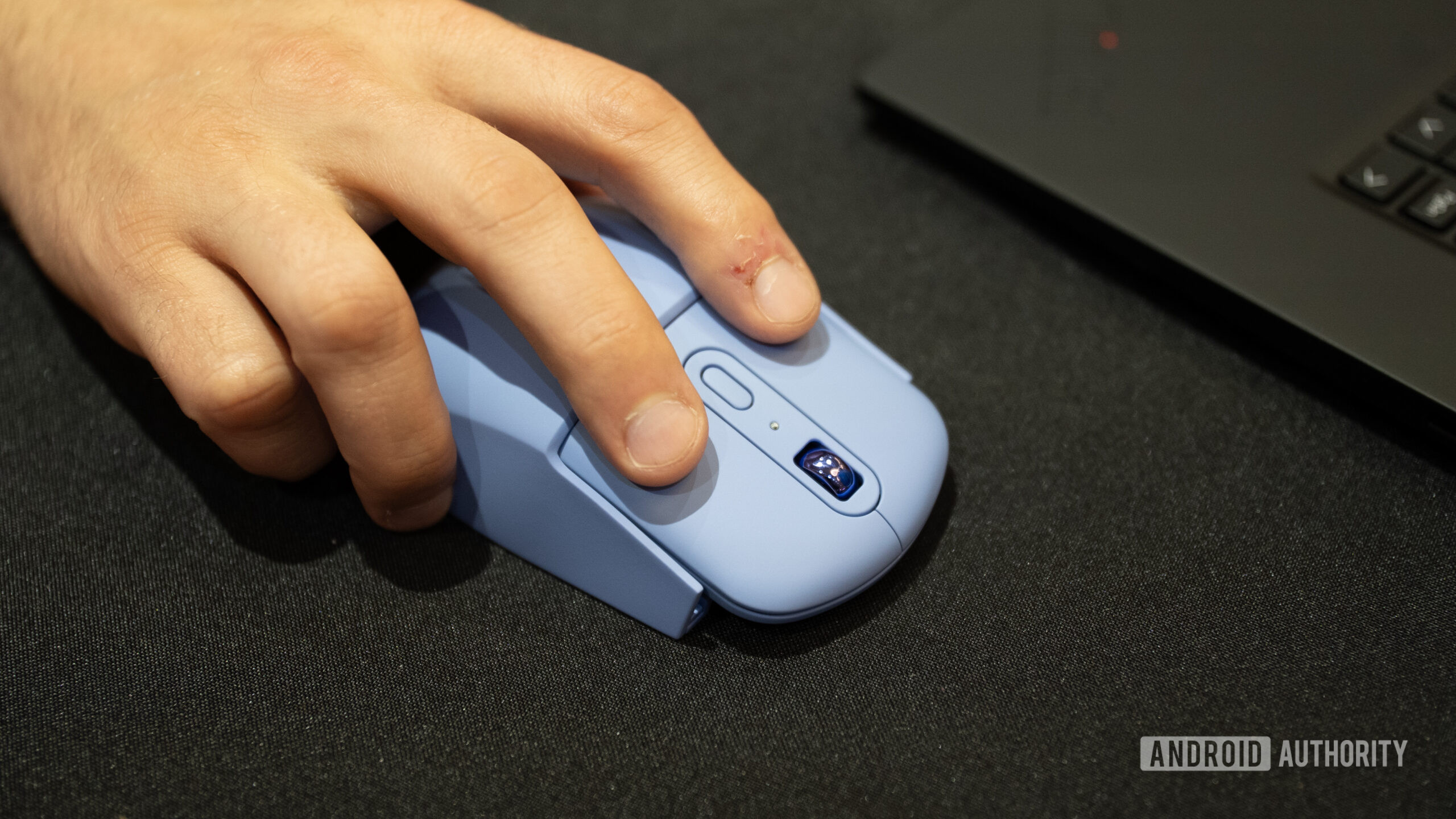
The immediate hurdle in Desktop Mode is input fidelity. Relying on the phone’s touchscreen or on-screen keyboard for desktop-style multitasking is inefficient and defeats the purpose of the larger display. The most seamless way to bridge this gap is through wireless peripherals.
Pairing standard Bluetooth keyboards and mice is remarkably straightforward, utilizing the established Android pairing process accessible via the quick settings panel. The system is designed to recognize these inputs instantly upon connection, requiring no additional driver installation or proprietary software layers—a key advantage over some earlier proprietary solutions.
However, this convenience presents a subtle management challenge. Once paired, these peripherals remain tethered to the phone’s Bluetooth profile. If the user frequently alternates between using the keyboard/mouse with a traditional PC and the Pixel Desktop Mode, the phone might persistently attempt to connect, potentially disrupting the primary machine. The solution involves recognizing the inherent flexibility: wired peripherals offer a superior, latency-free experience for dedicated desktop sessions and bypass the persistent Bluetooth association issue entirely. Power users often maintain a dedicated wired set for docking scenarios.
2. The Imperative of a Capable USB-C Hub or Dock
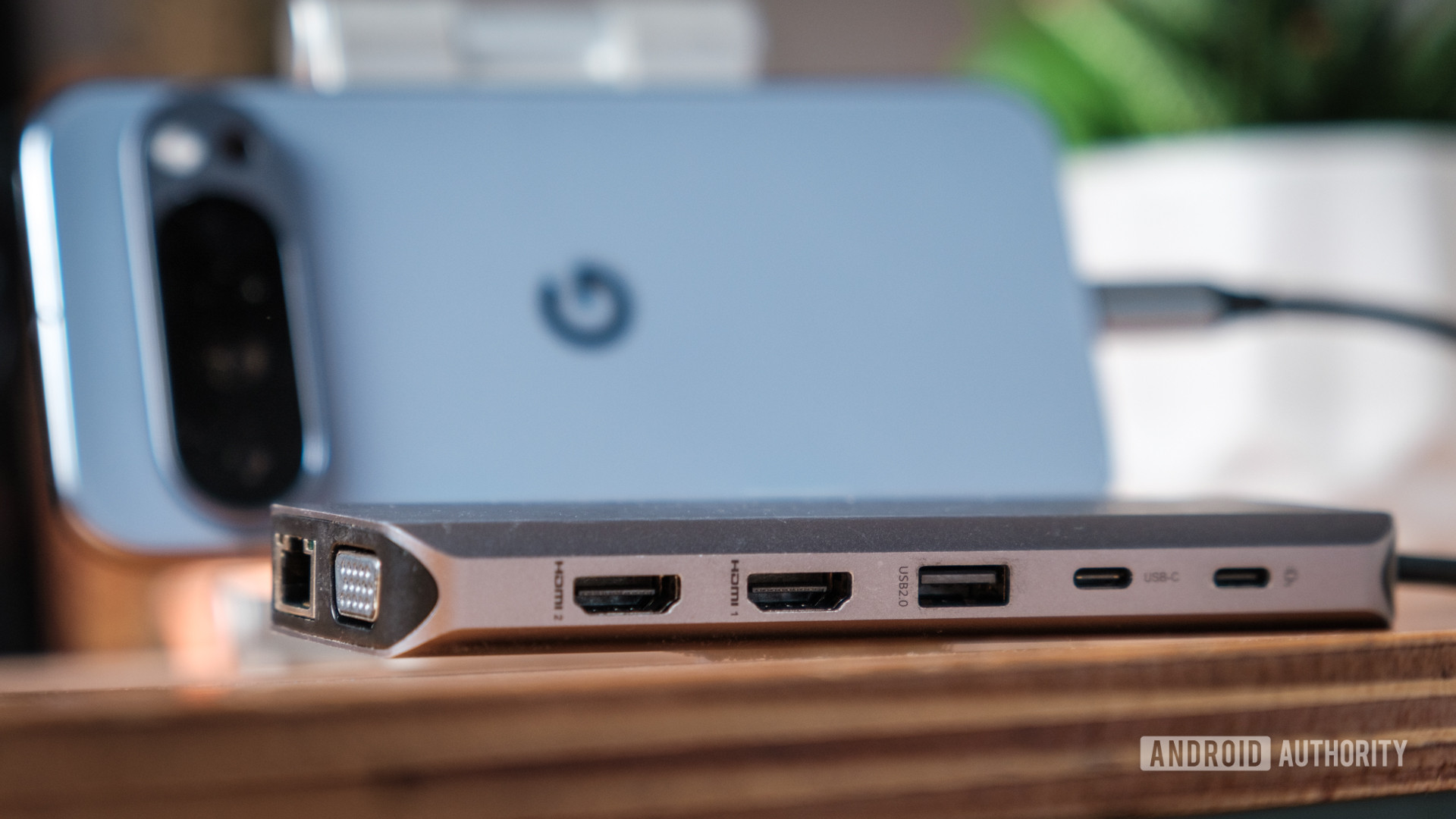
While direct USB-C to DisplayPort cables work for basic video output and often power delivery (if the monitor supports USB Power Delivery), true desktop utility demands expanded I/O. The phone, even in Desktop Mode, is still the sole computational engine, requiring peripherals, storage, and reliable power.
Investing in a high-quality USB-C dock or multi-port dongle is non-negotiable for regular use. The ideal peripheral should support robust USB Power Delivery (PPS standard preferred for optimal Pixel charging speeds) to ensure the device remains powered during intensive sessions. Furthermore, accessing multiple USB-A ports allows for immediate, zero-latency connection of dedicated input devices, eliminating the aforementioned Bluetooth management overhead.
Expert analysis suggests looking for docks that incorporate modern standards like HDMI 2.0 or better for higher resolutions, and critically, a Gigabit Ethernet port. While Wi-Fi is adequate for casual browsing, sustained productivity, large file transfers, or critical video conferencing benefits immensely from a stable, wired network connection, a feature often overlooked but essential for professional workflows. The ability to integrate external storage (USB drives or SD card readers integrated into the dock) further solidifies the phone’s role as a portable workstation hub.
3. Navigating the Hidden Configuration Panel
Unlike established desktop environments where the settings cog is omnipresent, locating configuration options within the initial Desktop Mode can be obscure. The gear icon is not persistently displayed on the taskbar. Access requires interacting with the notification shade, which is summoned either by clicking the subtle clock element in the top-left corner or by clicking the status icons in the top-right.
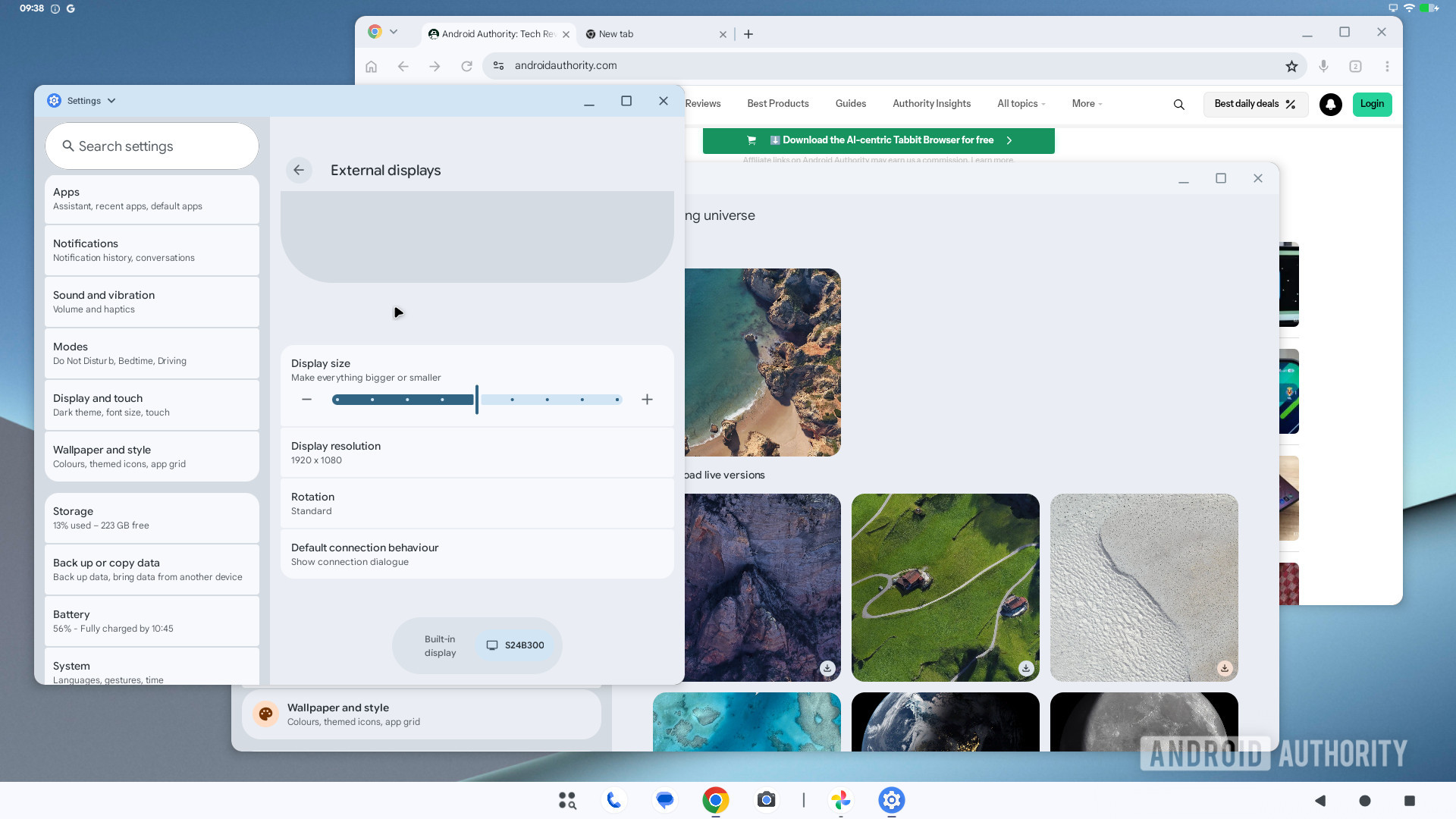
Once within the notification panel, the settings icon resides in its traditional location at the bottom. Within the settings, the External Displays submenu under Connected Devices is the command center for optimization. Here, users can define resolution, display rotation, and, most importantly, scale the density of interface elements (text, icons). This scaling is invaluable, as it allows the user to tailor the visual workspace for the specific dimensions of the external monitor, saving customized profiles for different displays.
A crucial warning for nascent users: these display settings are often shared between the phone’s native orientation and the desktop mode. A high-DPI setting optimized for a 32-inch monitor might render the standard phone UI unusable. Furthermore, cosmetic changes like desktop wallpaper selection are currently applied universally, meaning a customized widescreen background will persist, potentially clashing with the phone’s mobile aesthetic upon disconnection. This lack of profile separation is a notable area for future refinement.
4. Optimizing Session Longevity: Screen Timeout Adjustment
A common friction point for new users is the aggressive default screen timeout of 30 seconds on the Pixel. In a mobile context, this conserves battery; in a desktop context, it is an immediate workflow interruption, requiring constant re-authentication. Adjusting this is vital.
The ideal timeout setting requires user calibration, balancing rapid screen-off when undocked with sustained activity when docked. While a fixed longer duration (e.g., 5 or 10 minutes) works, leveraging the Adaptive Timeout feature—which uses contextual awareness to judge when the device is actively being used—provides a more intelligent middle ground that serves both mobile and desktop usage patterns.
5. Mastering Application Window Management
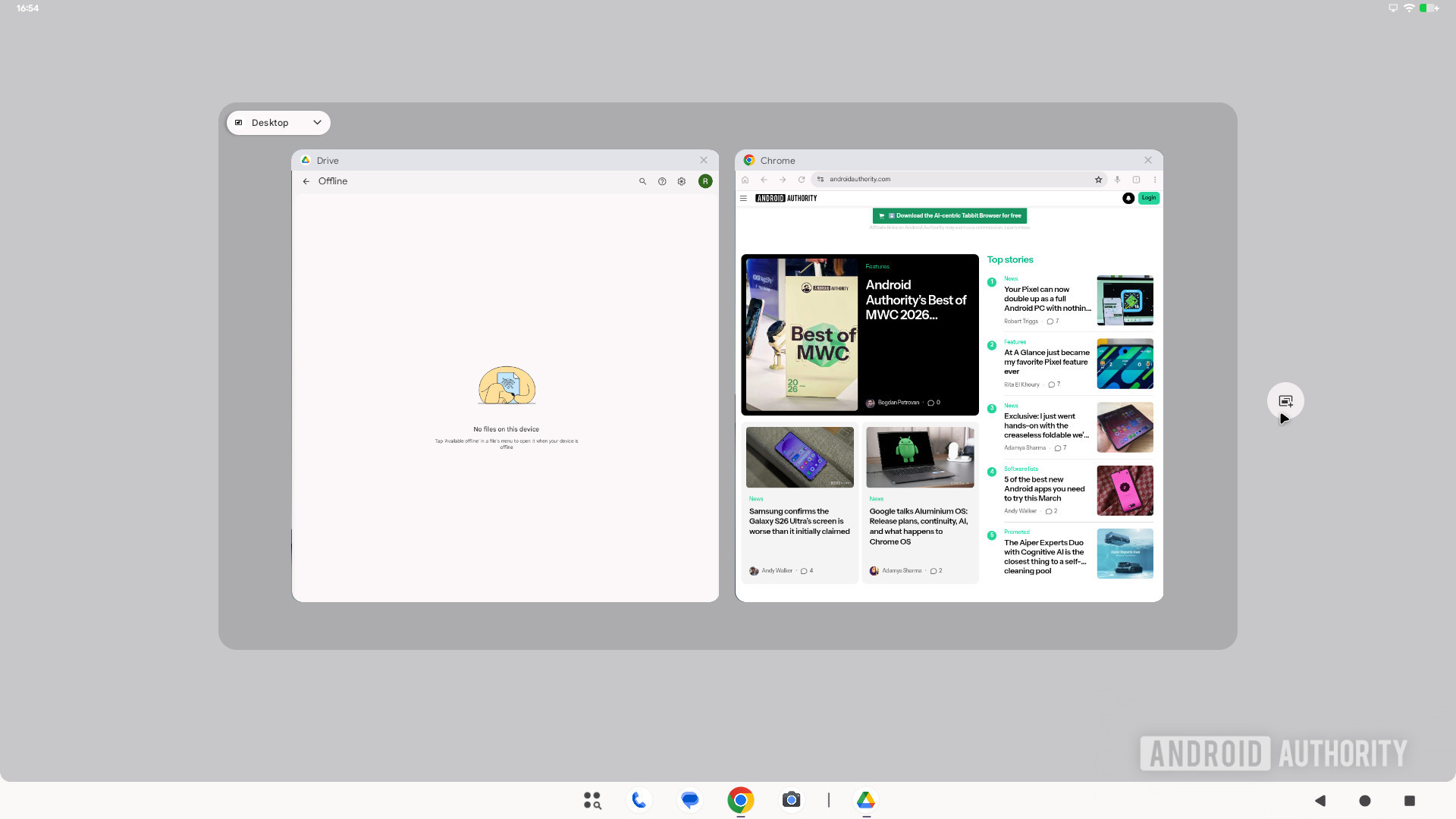
The core productivity gain in Desktop Mode stems from native multi-window support. Most modern, well-maintained Google applications (Chrome, Gmail, Photos) scale gracefully, offering dynamic layouts that shift from mobile-optimized to wide-screen rich interfaces based on window width.
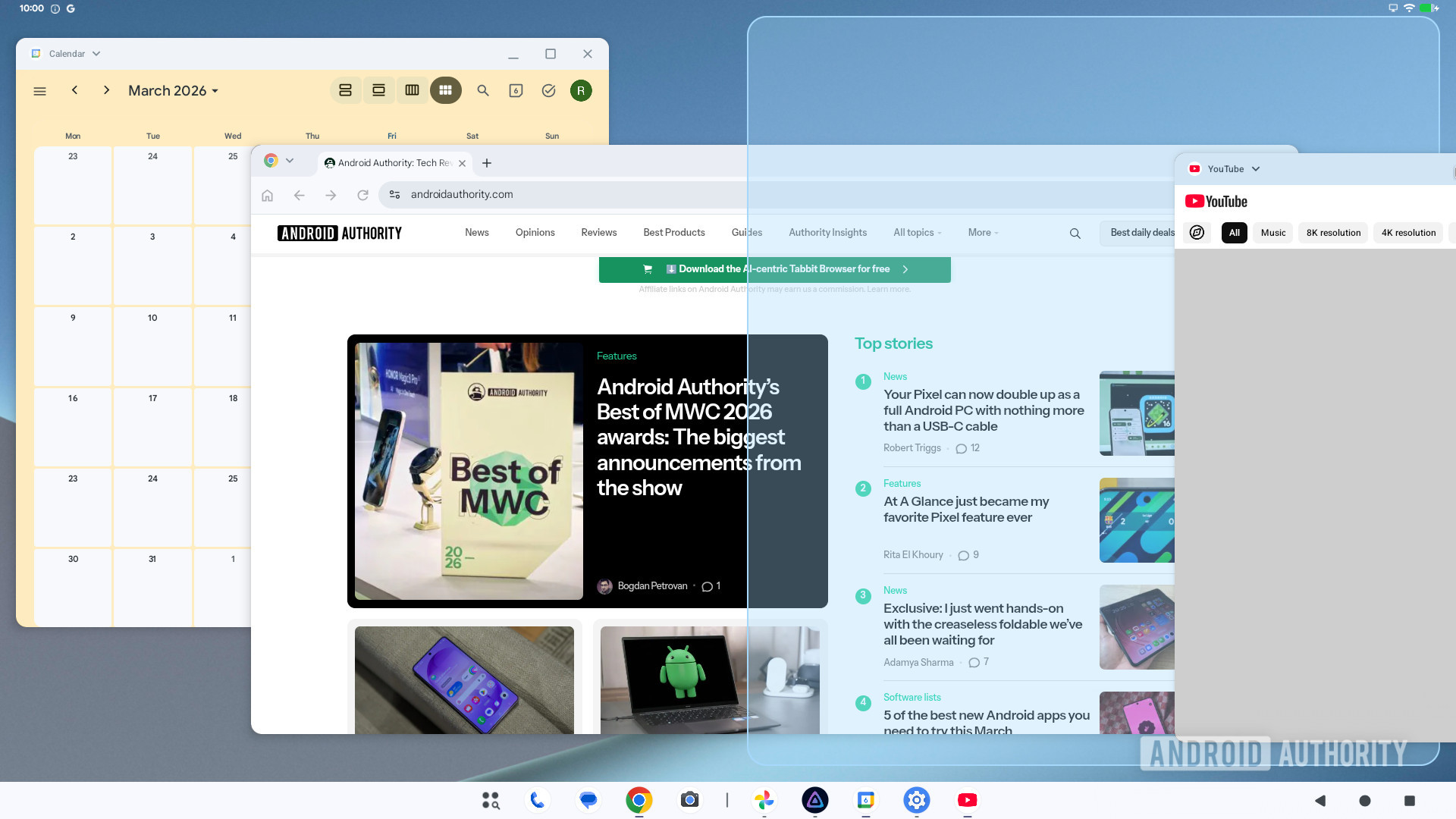
Users should actively test application responsiveness. Dragging window edges allows for resizing; making a window too narrow forces the application to revert to its phone-centric view. Power users should utilize the system’s window snapping capabilities, intuitively dragging windows to the screen edges for quick tiling (similar to Windows or macOS features). Accessing advanced controls via the top-left corner context menu provides options for immediate split-screen pairing or forcing full-screen immersion.
A specific pain point is exiting full-screen mode, which often defaults to awkward navigation through the on-screen controls. The key is leveraging the physical keyboard: the combination Super/Windows Key + Control + Down Arrow is the documented, swift exit command, immediately returning the application to a manageable floating window state.
6. Harnessing the Power of Keyboard Shortcuts
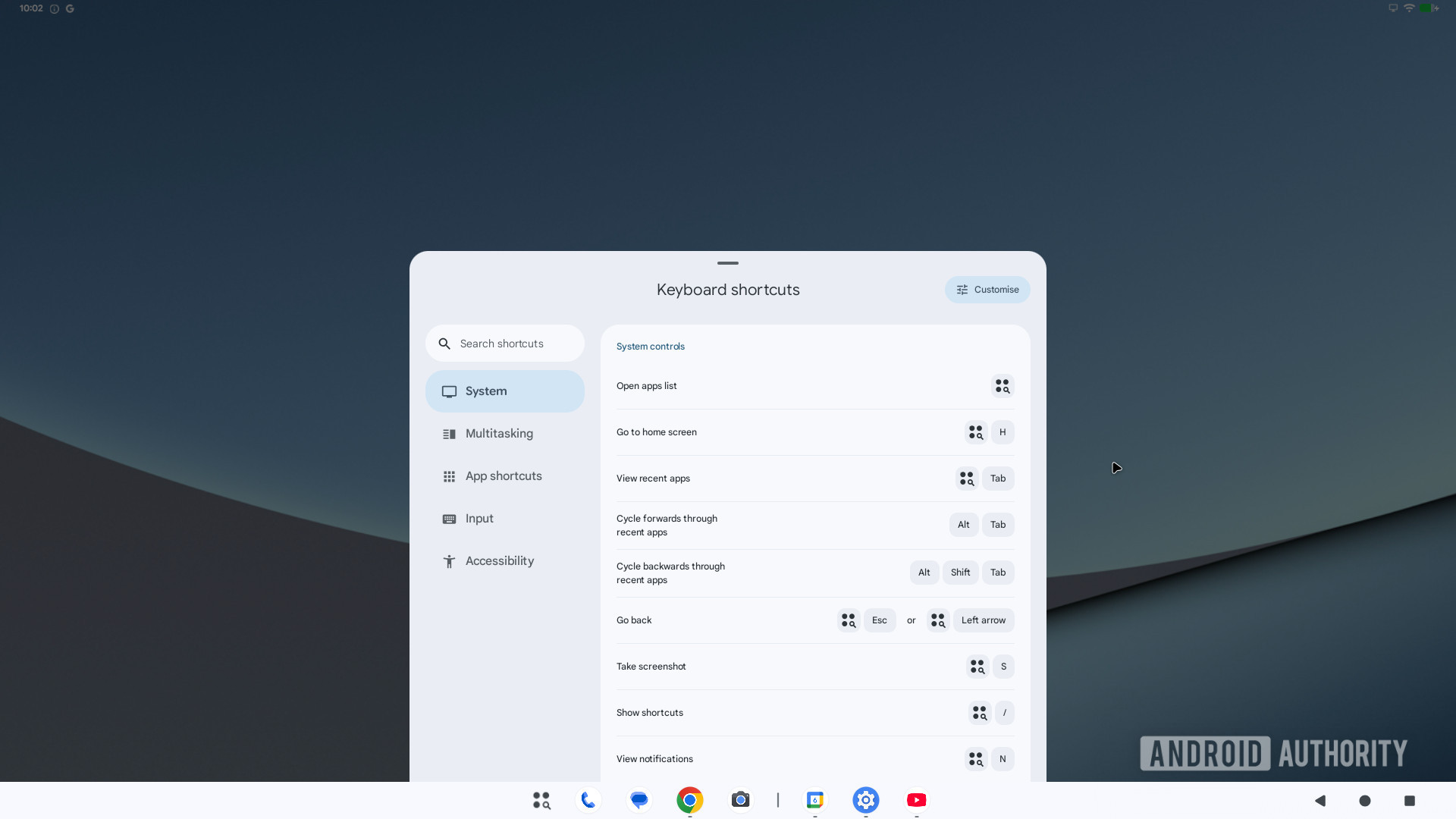
The keyboard is the primary interface accelerator in any desktop environment, and Android’s desktop layer recognizes this by implementing robust shortcut support. Beyond the essential Alt+Tab for application switching and the Super key for the app launcher, a library of shortcuts drastically improves efficiency.
These shortcuts extend to window manipulation (e.g., snapping windows to quadrants), launching specific default applications (browser, calculator), and managing the overall session. The comprehensive, customizable list can be accessed and memorized by pressing Super + /. For analysts and developers operating within this environment, dedicating time to learn these shortcuts transforms session efficiency, moving interaction away from mouse dependency.
7. Implementing Battery Health Preservation via 80% Cap
When utilizing the phone as a continuously powered desktop unit, thermal management and battery longevity become paramount concerns. Constant high-draw processing coupled with continuous charging cycles accelerate battery degradation.
Newer Pixel devices (8 series and later) support an intelligent charging limit feature. Setting this cap to 80% is highly recommended for sustained desktop use. This setting is not merely about reducing maximum charge; it triggers bypass charging. When the battery reaches the 80% threshold, the system diverts incoming power directly to run the device’s components (CPU, display, modem) rather than cycling the battery. This significantly reduces internal heat generation and mitigates the chemical stress associated with cycling between 80% and 100%. For users planning extended work sessions, this is a critical proactive maintenance step, preserving the device’s long-term viability as a primary compute source.
8. Recognizing the Utility of Display Mirroring
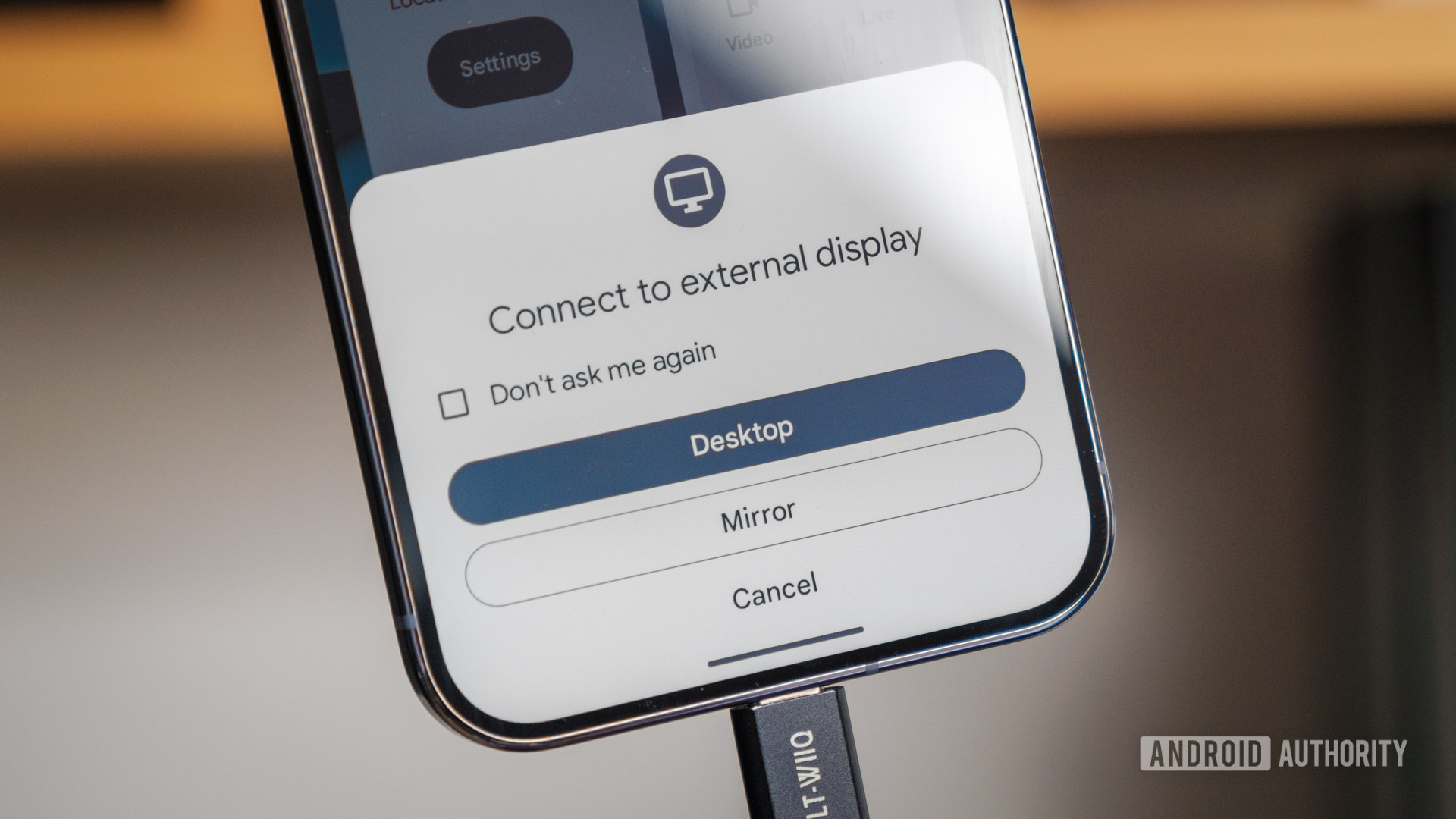
While the full Desktop Mode offers the most advanced multitasking capabilities, it is essential not to overlook the simple mirroring option available upon connection. Users often instinctively select the "Desktop Mode" default without considering the use case.
If the objective is purely media consumption—streaming video to a large screen, presenting a static set of photographs, or simple presentation work—mirroring is often faster and less resource-intensive. It duplicates the phone’s standard UI onto the external display. Critically, audio output is fully supported over the USB-C connection regardless of the mode chosen. For ephemeral tasks, bypassing the window management complexity of Desktop Mode for direct mirroring saves time and cognitive load. The connection prompt, if not permanently disabled, allows users to explicitly select mirroring behavior, ensuring the right tool is selected for the right job. This conscious selection highlights the layered nature of the external display support in modern Android.
Future Trajectory: Convergence and Ecosystem Development
The foundation laid by this initial Desktop Mode implementation sets the stage for significant trends. The rumored development of specialized operating system layers, such as the aforementioned "Aluminum OS," suggests Google aims to create a more cohesive, Linux-like kernel foundation optimized for this dual existence. As processing power continues to increase in mobile chipsets, the gap between a high-end smartphone and an entry-level PC narrows considerably.
The success of this feature hinges on third-party developer adoption. While Google’s suite adapts well, widespread professional adoption requires better support from major enterprise software providers, including specialized IDEs, complex graphic design tools, and heavy-duty virtualization clients. If Android can successfully onboard these crucial applications into a stable, windowed environment, the Pixel line could genuinely position itself as a single-device solution for a significant segment of the mobile workforce, offering unparalleled portability without sacrificing desktop functionality. Mastering these eight initial steps is the first rite of passage into that converged computing future.